How to run a Lovable project locally
By Sebastian Mertens · October 21, 2026
To run a Lovable project locally, clone its connected repository into GitHub, ask your Agent eg codex, claude code etc. to Therefore you need to install the dependencies you are lucky this is just a prompt.
Here a prompt:
Start my Lovable project from this github URL locally
Open the local address printed in your terminal from your Agent. Then check login and data access, you might need to install SupaBase locally to have a Database - just as your Agent: a page loading on your computer does not mean its database, files or integrations have moved there too - keep this in mind the DB stays with Lovable if you used lovabale cloud. You can find here prompts and a how to export lovable cloud data into an existing project.
This guide is for taking over everyday development in your own editor. You can make that change before deciding whether to move hosting. If you still need to get the source code, start with our Lovable GitHub export walkthrough.
What stays in the cloud
Treat the application as a set of connected parts. Your local development server serves the app; the services it calls may still run elsewhere. That matters when you click a button that creates a record, sends an email or starts a payment.
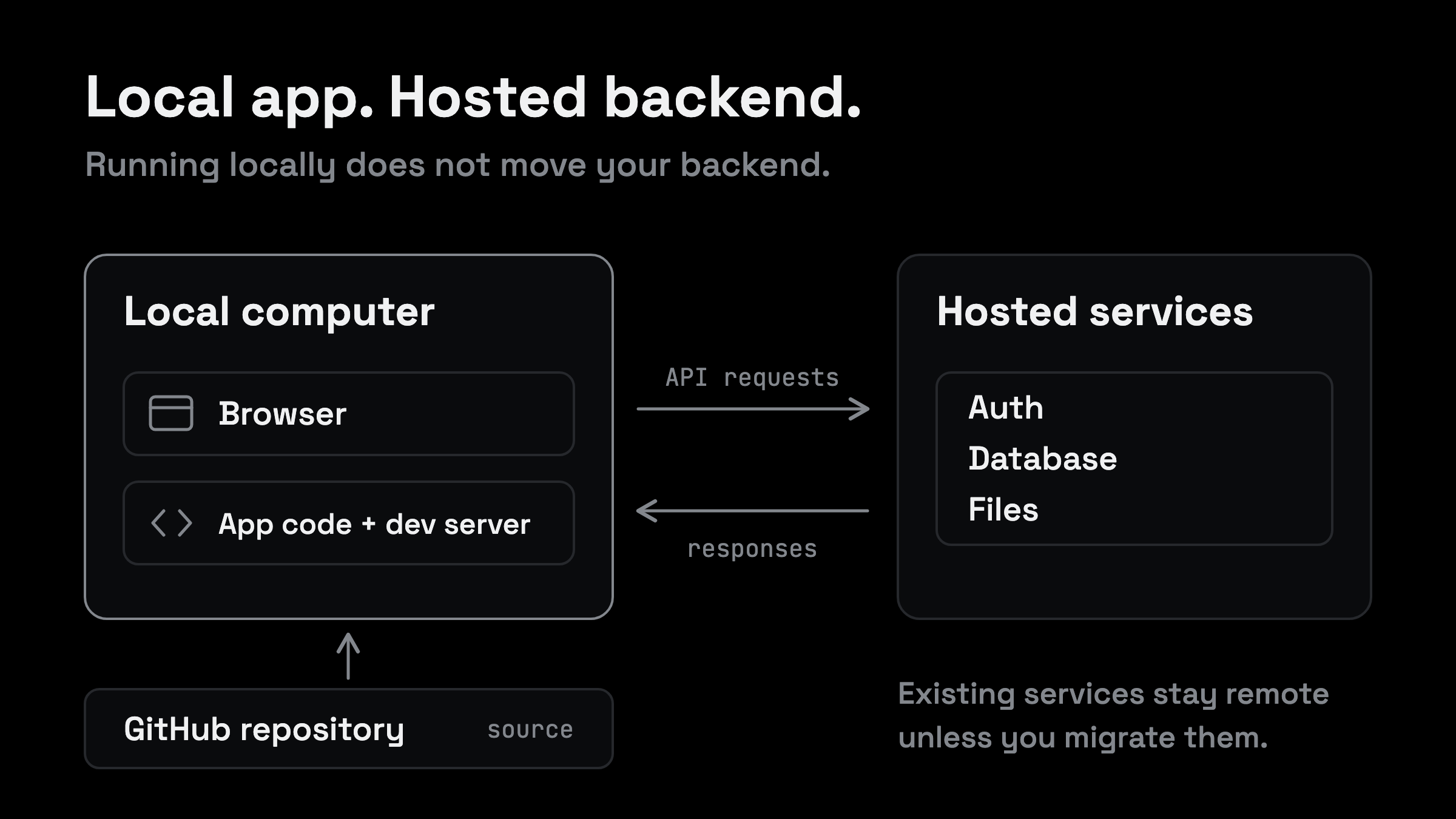
Keep in mind:
- Which repository and branch contain the version you want to work on?
- Which backend (Database, Functions etc.) will the local app connect to?
- Which features call a hosted function, an AI service or another external API?
Here a prompt:
Check which parts of this app will run locally and which still use hosted services. List the database, login, files, functions and AI calls.
Tell me which connections point to production and what we need for a separate development setup.
Use a development backend for changes that write data. A Git branch isolates code changes, but it does not create a separate database. An existing environment file may still point at production. Lovable calls out these distinctions in its local development guide.
Clone your Lovable project
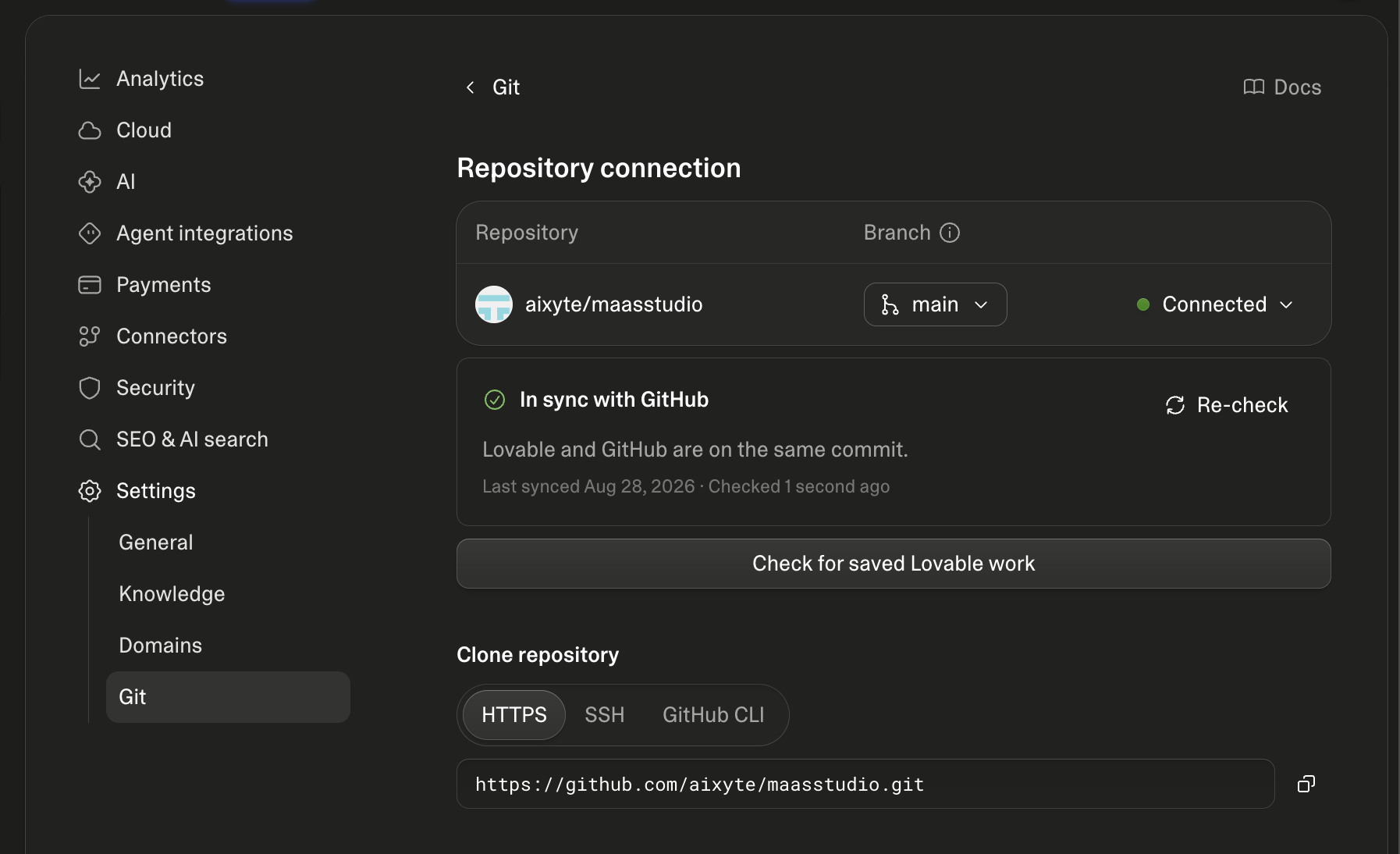
In the project's Git settings, check the repository name, selected branch and sync status. The screenshot below shows an existing connection. Use your own project's clone URL, not the example address in the image.
Clone my Lovable project from [GitHub URL] using [source branch].
Create a separate branch for my local changes and open the project. Check what it needs to run locally and tell me which backend it will connect to.
Check that git --version works, then open a terminal in the parent folder where you keep your projects:
git clone --branch YOUR-SOURCE-BRANCH https://github.com/YOUR-ACCOUNT/YOUR-REPOSITORY.git
cd YOUR-REPOSITORY
git switch -c local-development
git status
Replace the branch, URL and directory name with your own. Use the source branch you checked in Lovable; a plain clone would select the repository's default branch, which may differ. The next command creates a working branch called local-development for your edits. A private repository requires GitHub authentication. GitHub's cloning documentation covers access and cloning. Tell your agent to switch the branch unless you want it.
Open the folder in your editor. Compare a recent visible change with the Lovable version you expected to export. That catches an older branch or a similarly named repository before you spend time diagnosing the wrong project.
Start and test the app
Now ask your Agent to start the app. You do not need to work out whether this project uses npm, pnpm or Bun. Your Agent can read the project, install what it needs and give you the local URL.
Keep in mind: the Agent still needs to know which backend you want to use. If the project needs environment variables, ask it for the names and where to enter them. Private keys do not belong in a prompt or in GitHub. Vite's environment guide explains which values end up in the browser.
Here a prompt:
Start this project locally. Read its README and package.json, use the package manager it already uses and install the required dependencies.
Check the environment variables and tell me which backend the app will use. If anything is missing, tell me where to enter it privately.
Give me the local URL. Then check login, a protected page, reading and writing test data, and uploads if the app uses them. Use a development backend for writes and show me what passed and what still needs attention.
Open the URL yourself. Does this look like your app? Try the things your users actually do. Sign in, open a page that needs an account and reload it. If the app saves something, create a test record and find it again. If it handles files, upload a test file and open it.
Your Agent can help with these checks, but you know what the app is supposed to do. Tell it what you expected and what happened instead. A screenshot or the exact error is more useful than “it does not work”.
Once that works, ask for the production build to be checked too. Starting a development server and building the app for hosting are different checks. Keep the first change small so you can see that your local version updates as expected.
If login sends you back to the live site
This can happen when login still points to your published app. Ask your Agent to check the return URL before changing the authentication setup.
Here a prompt:
Login from my local app sends me to [the URL you land on]. Find out why.
Check which service handles authentication, the callback requested by the app and its allowed redirect URLs. Fix the local setup while keeping the live app's login working, then test sign-in, reload and sign-out.
Use the settings for the backend you actually have. Lovable Cloud settings and your own Supabase dashboard are different places. Lovable explains its Supabase connection here.
For Supabase Auth, the local return URL needs to be allowed and the app needs to request it. Adding that URL does not mean replacing the live site's default URL with localhost. Your Agent can check both against Supabase's redirect documentation.
Test it again with a fresh login. An account that is already signed in can hide the problem you were trying to fix.
When something does not work
Give your Agent the error and the step that caused it. You do not need to diagnose it first. The useful part is telling it whether the problem happens when starting the app, opening a page, logging in or saving something.
| What happens | What to ask your Agent |
|---|---|
| The app will not start | Check the project requirements, dependencies and start script |
| The page is blank | Read the first browser error and the local server output |
| Your data is missing | Check the backend connection, account and access permissions |
| Login opens the live site | Check the local redirect and callback settings |
| An AI feature fails | Check where the request runs and which credentials it needs |
| A local test changes live data | Stop writes and set up a development backend before testing again |
Here a prompt:
I tried [what you did] at [local URL] and expected [result]. Instead I got [error or screenshot].
Find the cause, explain it briefly and fix it. Keep the existing project setup unless a change is needed, then repeat the failing action to verify the fix.
Keep in mind: some integrations still depend on Lovable's hosted services. Lovable-managed AI and connector credentials are not automatically available to a local TanStack Start server. An older Vite app may still use hosted Edge Functions. Your Agent needs to check the actual project. Lovable's local development guide covers these differences.
Do not ask the Agent to replace every service just because a feature fails once. Let it identify what that feature needs, then decide whether you want to keep the existing service or move it.
Keep your changes in GitHub
When the app works locally, ask your Agent to show you what changed. Check the changes before sending them back to the repository.
Here a prompt:
Show me the changes we made to get this app running locally. Check that private keys and local environment files are not included.
Commit the reviewed changes on our working branch. Tell me how that branch relates to the one Lovable is syncing, and ask me before merging into the shared branch or publishing the app.
Lovable follows the branch selected in its Git connection. If your local work is on another branch, it will not appear there until you select that branch or merge the changes. A GitHub push also does not publish the website. See Lovable's Git sync overview.
If someone else is still building in Lovable, agree on where you are working. That saves you from wondering why your local version and the Lovable preview show different things.
FAQ
Can I run a Lovable project locally for free?
You do not need another hosting plan to run the exported code on your computer. But the services your app calls can still cost money. Ask your Agent which database, AI, email and file services the app is using before assuming the whole setup is free.
Does localhost mean the app works offline?
No. It means you are opening the app on your computer. Login, data and integrations may still need the internet. If you want an offline app, tell your Agent that explicitly so it can check what needs to run locally or be replaced.
Do I need to move my database first?
You can start working on the code before moving the database. Ask your Agent to set up a development backend when you need to test writes. Moving the real data is another task, with its own checks. Do that when you are ready, instead of mixing it into your first local edit.
For that next step, use How to move out of Lovable Cloud, with prompts for exporting the data and filling the database your Agent prepared.
Tell your Agent where to run it
Your app now runs locally. If you want other people to use it, it also needs a hosted version. Tell your Agent whether you want to keep working locally or prepare a deployment to ohmyho.st.
Here a prompt:
I want this app on ohmyho.st. Read https://docs.ohmyho.st/quickstart and follow the current deployment Skill.
Inspect this project, reuse its existing project connection if there is one and tell me what needs to change. Check which backend services stay where they are.
Deploy to Dev and give me the URL so I can test the app. Show me the result and ask before publishing to Prod or switching my domain.
We build ohmyho.st. Your Agent can prepare the deployment and give you a Dev URL to review. Use our Lovable hosting guide for that next step.
If you want to stay local for now, that is fine too. Ask the Agent to keep the project working on your computer and save your changes in GitHub. Our guide to using your own coding agent covers that workflow.